![01_Outcomes_circle_r_FINAL_300dpi-01.png]](https://outcomes.com/hs-fs/hubfs/01_Outcomes_circle_r_FINAL_300dpi-01.png?height=40&name=01_Outcomes_circle_r_FINAL_300dpi-01.png)
- You will provide an email address to your Onboarding representative for 1-time account linking. They will inform you when it is ok to move onto the next step.
- Please visit https://web.prescribewellness.com/
- Click Reset Password using the email address you provided.
- Check your email and follow the instructions on the email to create a new password.
-
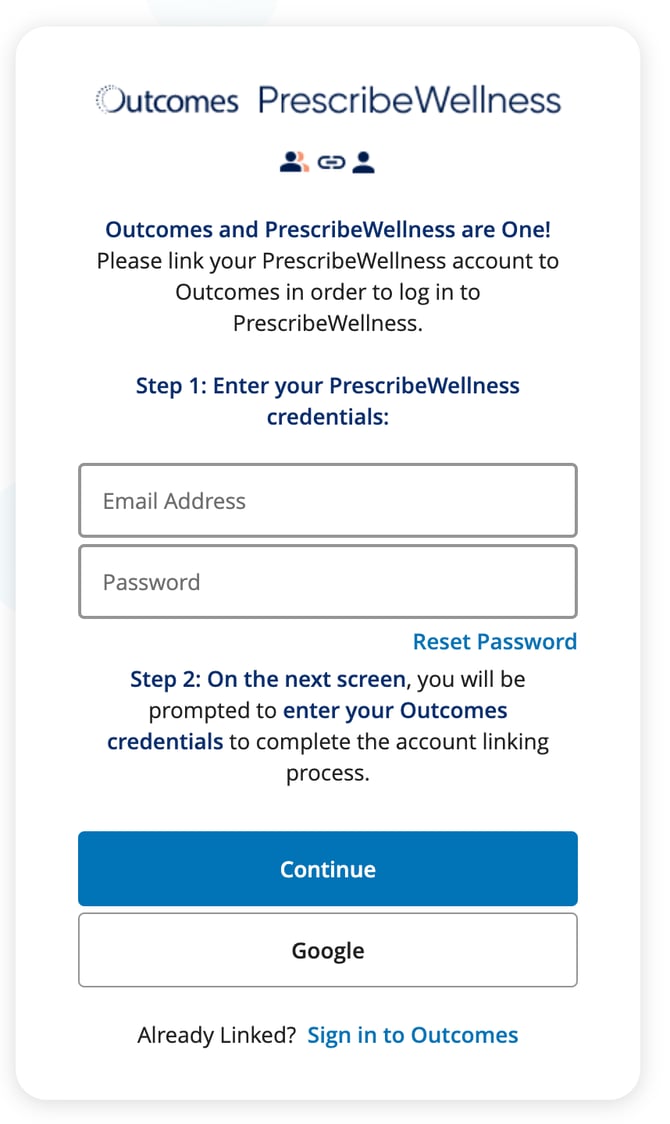
Once your new password is created, you will enter the email address and password on below screen and click Continue.
-
If you have forgotten the password, use the Reset Password link on the screen
-
If you do not have a PrescribeWellness email address and password, you will need to contact Customer Support at 800-677-8525 (option 2) or premium@outcomes.com
-
-
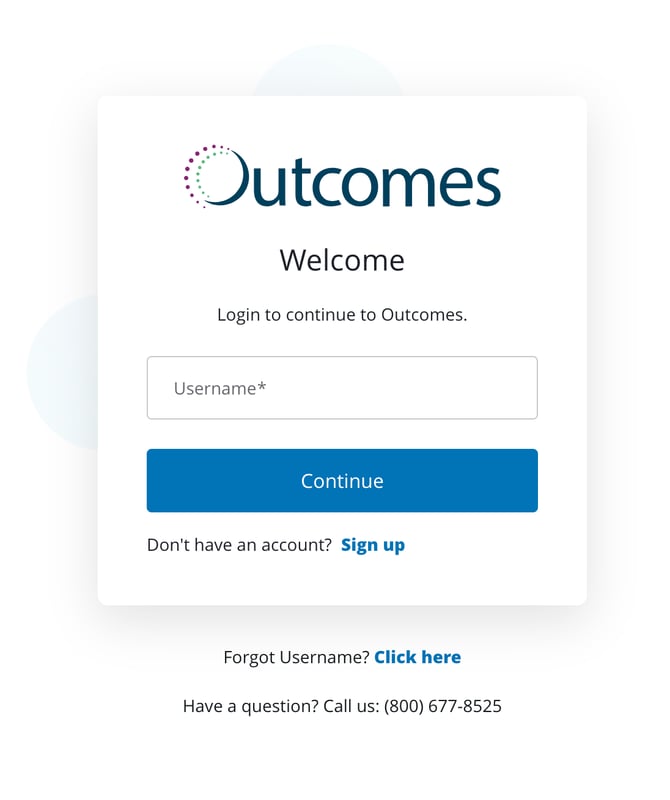
Then you will be prompted to enter your Outcomes username. Enter your Outcomes Username and click Continue.
-
If you have forgotten your username, use the Forgot Username? Click here link on the screen
-
If you do not have an Outcomes username, you can create one using the Sign up link on the screen.
-
-
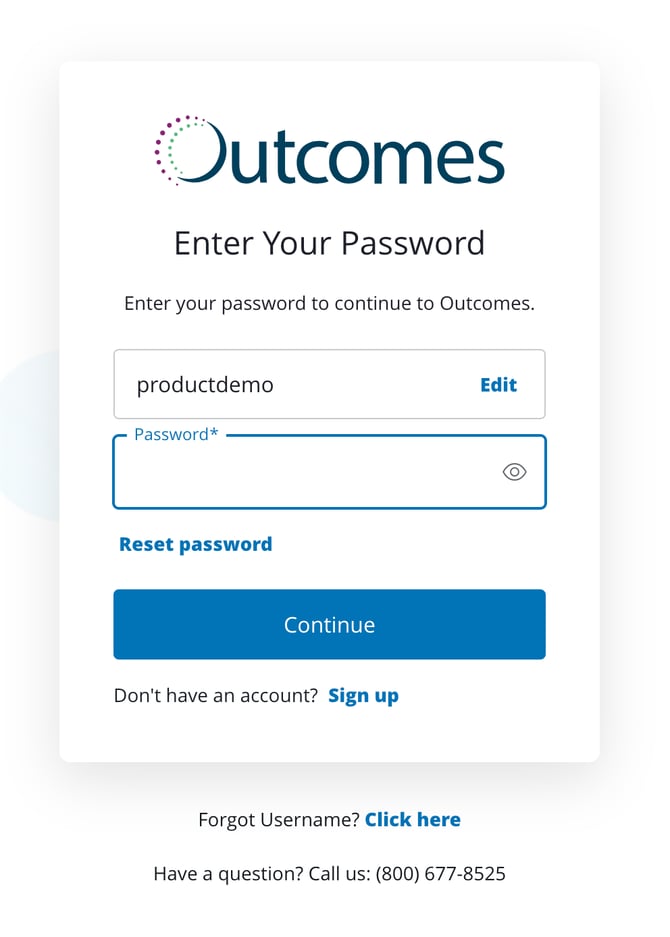
You will then be prompted to enter your Outcomes password. Enter your Outcomes password and click Continue
-
If you have forgotten your password, use the Reset password link on the screen
-
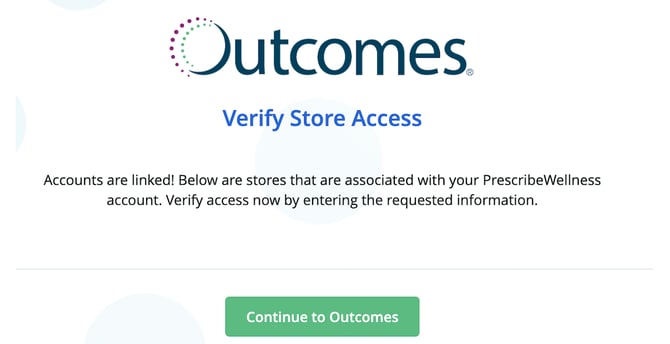
- *You may be asked to Verify Store Access and answer a challenge question to ensure you work at the store(s) tied to your user profile.
-
Your 2 user accounts are now linked together so that you can access Outcomes Premium features in the Outcomes platform. You will only need to remember your Outcomes username and password going forward and only need to login to the Outcomes platform via https://secure.outcomesmtm.com/
- If you are new to Outcomes, upon login you will be required to watch a short training video and complete a quiz.
- Afterwards, you will need to request access to the NCPDP(s) that you want access to in the Outcomes platform.
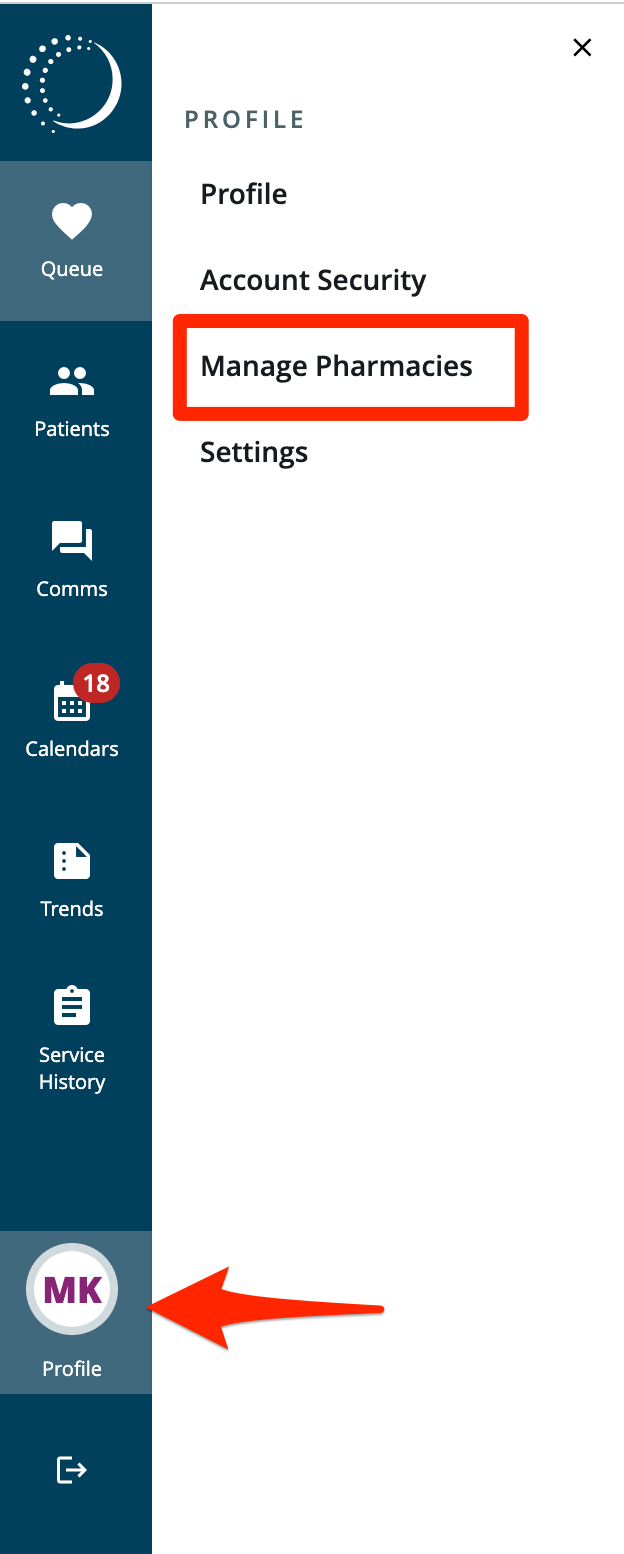
- You may do this by clicking Profile on the bottom-left nav
- Then click Manage Pharmacies
-
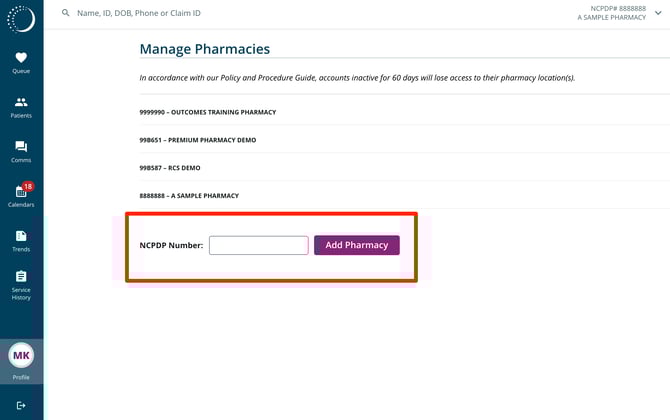
Add the NCPDP Number that you want to request access to and click Add Pharmacy
-
Repeat for any additional NCPDPs that you want access to
-
Please note that NCPDP request approvals may take up to 10 business days