![01_Outcomes_circle_r_FINAL_300dpi-01.png]](https://outcomes.com/hs-fs/hubfs/01_Outcomes_circle_r_FINAL_300dpi-01.png?height=40&name=01_Outcomes_circle_r_FINAL_300dpi-01.png)
- Rx History Table
The Rx History Table displays crucial prescription data points including the Rx Date, Medication, Q/DS, Prescriber, Location, and Source of all medications filled during the past 12 months with the capability to display up to 1,000 total entries.
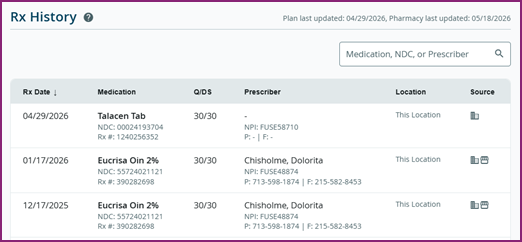
Columns Headers Explained
- Rx Date
- Date the prescription was filled
- Dates are listed in descending order by default
- Newest Dates Appear First
- Oldest Dates Appear Last
- Clicking on column header switches dates to ascending order
- Oldest Dates Appear First
- Newest Dates Appear Last
- Medication
- Name and details of the prescription medication
- Details include:
- Drug Name, Form, and Strength
- National Drug Code (NDC)
- Rx Number*
- Refills Remaining*
- *These details are displayed only when Location = This Location
- Clicking on column header switches list to alphabetical order
- Q/DS
- Q = Quantity: Indicates amount of prescription dispensed
- DS = Days Supply: Indicates length of therapy in days
- EX: 90/30 = 90 units taken over the course of 30 days
- Clicking on column header switches list to numerical order by days supply
- Prescriber
- Name and details of the clinician ordering the prescription
- Details Include:
- Prescriber Last Name, First Name
- National Provider Identifier (NPI)
- Phone Number (P)
- Fax Number (F)
- Clicking on column header switches list to alphabetical order by last name
- Location
- Indicates where the prescription was filled:
- This Location: Internal Pharmacy
- Other: External Pharmacy
- Clicking on column header switches list to alphabetical order
- Indicates where the prescription was filled:
- Source
- Indicates origin of the prescription data
- Payer: claims provided from Payer sources
- Pharmacy: claims provided from Pharmacy sources
- Pharmacy & Payer: matching claims provided by both Payer & Pharmacy sources
- Clicking on column header switches list to icon order with similar icons grouped together
- Indicates origin of the prescription data
II. Search Bar
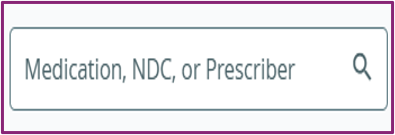
The Search Bar allows for the filtering of the Rx History prescription data points. It supports searching by most of the prescription details that are included in the Rx History Table.
Supports Searching By:
-
-
- Medication Name
- NDC Number
- Rx Number
- Prescriber First or Last Name
- Prescriber Phone Number Only
-
III. Data Currency Indicators
The Data Currency Indicators allow users to verify that the information that they are viewing in the Rx History Table is current. It lists the date that the Plan was last updated as well as the date that the Pharmacy was last updated.

Provides Updates On:
-
-
- Plan Last Updated: Date that Payer claims data was last received
- Pharmacy Last Updated: Date that Pharmacy dispensing data was last received
-
However, it is important to note that if a patient has only one source of either Plan or Pharmacy data available to update, the Data Currency Indicator language displayed will be slightly different. Instead of listing the Plan Last Updated and Pharmacy Last Updated dates, it will list simply the Last Updated date. Hovering over the Question Mark icon will indicate whether the data being displayed was sourced from either a Payer or Pharmacy.

- Reviewing Patient Medication History
The Rx History Table provides a quick way to review patient medication history over the past 12 months with the capability to display up to 1,000 entries.
How to Review Patient Medication History:
-
-
- Log into the Outcomes Platform.
- Open the Patient Profile and click on the Rx History icon from the To Do window.
- Review all of the medications listed in the Medication column of the Rx History Table.
- Optional: Click on the Column Header to sort the list from descending to ascending order.
-

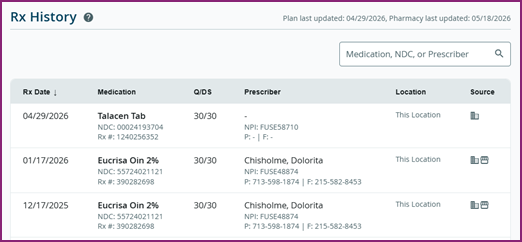
The Rx History Table provides an easy way to filter for specific medications that were prescribed over the past 12 months with the capability to display up to 1,000 entries.
How to Filter for Specific Medications:
-
-
- Log into the Outcomes Platform.
- Open the Patient Profile and click on the Rx History icon from the To Do window.
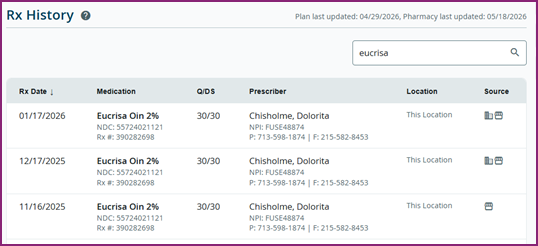
- Input either the Medication Name, NDC Number, or Rx Number into the Search Bar.
- Review the additional details for that Specific Medication from the filtered list.
-

III. Filtering for Specific Prescribers
The Rx History Table provides an easy way to filter for specific prescribers that ordered medications over the past 12 months with the capability to display up to 1,000 entries.
How to Filter for Specific Prescribers:
-
-
- Log into the Outcomes Platform.
- Open the Patient Profile and click on the Rx History icon from the To Do window.
- Input either the Prescriber First Name, Last Name, or Phone Number into the Search Bar.
- Review the additional details for that Specific Prescriber from the filtered list.
-
NOTE: Searching by Prescriber NPI Number or Fax Number will yield no results

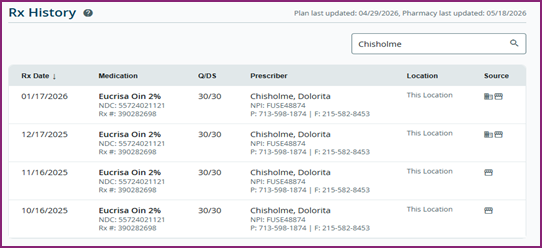
IV. Sorting Data by Column Headers
The Rx History Table provides an easy way to sort columns by using the Column Headers. Simply click on the column headers to switch the data points in the columns listed from either descending to ascending order, non-alphabetical to alphabetical, non-numerical to numerical or not grouped by icon to grouped by icon.
How to Sort Data by Column Headers:
-
-
- Log into the Outcomes Platform.
- Open the Patient Profile and click on the Rx History icon from the To Do window.
- Click on the appropriate Column Header to sort the data as listed below:
- Rx Date: Sorts from descending to ascending date order
- Medication: Sorts from non-alphabetical to alphabetical medication list
- Q/DS: Sorts from non-numerical to numerical Q/DS list
- Prescriber: Sorts from non-alphabetical to alphabetical prescriber last name
- Location: Sorts from non-alphabetical to alphabetical location type
- Source: Sorts from not grouped by icon to grouped by icon of source type
- Review the sorted data listed in the Rx History Table.
-
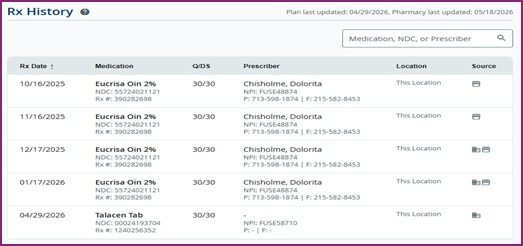
- Medication Reconciliation
The Rx History Page allows users to conduct medication reconciliation by verifying both current and past medications during patient interactions using the Rx History Table. Ultimately, this can help speed up the process of removing any duplicate therapies or outdated prescriptions from a patient’s medication list moving forward. - Adherence Monitoring
The Rx History Page allows users to engage in adherence monitoring activities by comparing the Rx Date and Q/DS columns of the Rx History Table. By simply checking if the medication refill dates align with the quantity and days supplied dates ordered by the prescriber, pharmacists can quickly identify potential gaps in therapy and address non-adherence risks before they begin to impact patient care. - Clinical Interventions
The Rx History Page also helps to provide opportunities for user outreach. For instance, if a user reviews the data contained within the Rx History Table and identifies a duplicate therapy risk, lapse in prescription adherence, or potential drug interaction, they can quickly address this concern by contacting the patient using the information contained in their Patient Profile. In this way, the Rx History Page can also be used to support Medication Therapy Management (MTM) activities. - Care Coordination
The Rx History Page allows users to participate in care coordination activities by comparing the Location and Source columns of the Rx History Table. If a Location is listed as Other, for example, it means that the prescription was filled at an external pharmacy, which could lead to care fragmentation if not addressed. This scenario would also serve as a great opportunity for a user to then communicate with the appropriate prescriber or care team so that the patient’s care can be coordinated effectively.