![01_Outcomes_circle_r_FINAL_300dpi-01.png]](https://outcomes.com/hs-fs/hubfs/01_Outcomes_circle_r_FINAL_300dpi-01.png?height=40&name=01_Outcomes_circle_r_FINAL_300dpi-01.png)
The 3 Core functionalities of Virtual Pharmacist:
- Queue auto-refillable scripts to the Fill/Refill Requests queue (F8 Queues > #7).
- Automatically fill all cash refill requests that are in the Fill/Refill Requests queue, and either adjudicate or queue (to the F8 > 03 OnLine Queue) all non-cash refill requests.
- Check your Online Queue either once per day or all throughout the day to automatically adjudicate scripts queued for a submit date of the current date.
To enable functionality number 1:
The first functionality is controlled by the top right section of Virtual Pharmacist's configuration screen. To get there, navigate to F1 Menu > Fills > 13 Virtual RPH > F7 Config
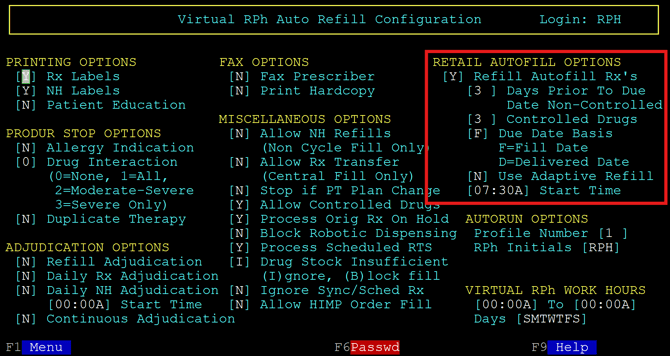
Options in this section:
Refill Autofill Rx's: Enables or Disables core functionality number 1 entirely.
Days Prior to Due Date fields: Controls the number of days early the auto-refillable scripts will show up in the F8 > #7 Fill/Refill Requests queue. Controlled and non controlled Rxs can be added to that queue different number of days early. 0 in this field will queue the scripts on their exact due date.
Due Date Basis: Controls which date Virtual Pharmacist uses to determine if an auto-refillable script is due to be filled. It can use the last fill date of the Rx, or the last date the patient received the Rx.
Use Adaptive Refill: Enabling this setting allows Virtual RPH to look back to 14 days worth of auto-refillable Rxs rather than only queuing the scripts due exactly the number of days early defined on the Days Prior to Due Date fields. Enabling this setting will also make Virtual RPH consider the entire fill history of a prescription rather than simply the last fill. If the patient received the med early at any point over the course of any of the prescription's refills, it will take that into account and not queue the script until the entirety of all refill's days' supply is <Days Prior to Due Date> days away, rather than only looking at the most recent previous fill instance. If you want the prescription's refill eligibility to be based solely on what happened with the most recent fill of a script and not take the entire prescription into account, this setting must be N.
Start Time: The time of day functionality 1 will occur. It is generally recommended that this time be before the pharmacy opens.
To enable functionality number 2:
The second functionality is controlled by the bottom right section of Virtual Pharmacist's configuration page. To get there, navigate to F1 Menu > Fills > 13 Virtual RPH > F7 Config
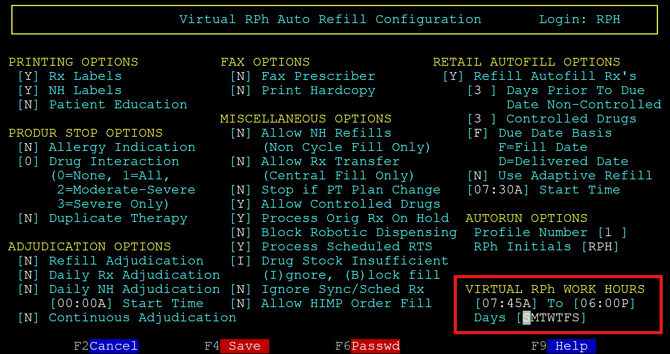
Options in this section:
Virtual RPh Work Hours: Every 30 seconds between the time slots listed here, VRPH will be checking the F8 > #7 Fill/Refill Requests queue for any prescription that is not an escript. When it finds a request for a cash prescription, it will automatically attempt to refill the prescription. When it finds a request for a non-cash prescription, users can configure Virtual to either automatically fill and adjudicate it no matter what the due date of the script is, or they can configure Virtual to queue all non-cash scripts it finds here to the Online Queue with a submit date of the due date of the rx to be processed later. This choice is made by the "Refill Adjudication" setting in the Adjudication Options section (bottom left) of the VRPH Config screen seen above. If it is set to Y, non-cash scripts will be immediately processed just like the cash scripts. If it is set to no, the non-cash rxs will instead be queued to the Online Queue for a submit date of their due date as previously described.
It is generally recommended that the first work hours time be a few minutes after the Start Time of the Retail Autofill Options section (if that functionality is being used), but at least a few minutes before the store opens. The second work hours time is generally store choice as to when they want it to stop Virtual from automatically filling the rxs from the Refill Request queue, but Outcomes' recommendation is at least a few minutes before the store closes.
Days: This field controls what days of the week VRPH will do functionality number 2. Upper case letters represent days that are enabled, lower case represents that the day is disabled. For clarity, the first 'S' represents Sunday, and the last 'S' represents Saturday.
To enable functionality number 3:
The third functionality is controlled by most of the settings in the bottom left of Virtual Pharmacist's configuration page. To get there, navigate to F1 Menu > Fills > 13 Virtual RPH > F7 Config
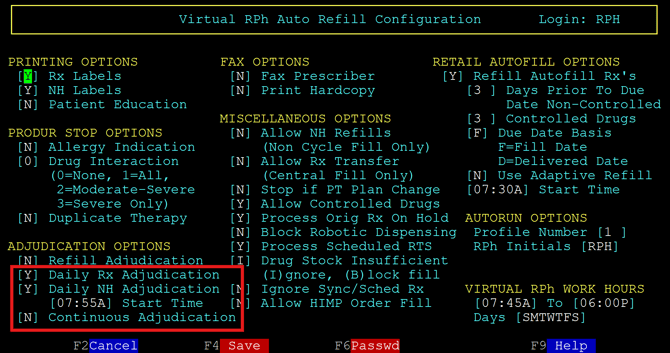
Options in this section:
Daily Rx Adjudication: This setting enables or disables functionality number 3 entirely for retail (non-NH) prescriptions.
Daily NH Adjudication: This setting enables or disables functionality number 3 entirely for Nursing Home prescriptions.
Start Time: This controls what time each day Virtual will attempt to adjudicate all prescriptions in the Online Queue (F8 Queues > 03) that have a submit date of the current date. This time MUST be within the time slots of the Virtual RPH Work Hours at the bottom right, or functionality number 3 will fail. This implies that if the user wants to use functionality number 3, they must use functionality #2 to some degree, since having times in the Virtual RPH Work Hours is what enables functionality 2 in the first place.
It is generally recommended that this Start Time field be a few minutes after the Work Hours time begins, but a few minutes before the store opens.
Continuous Adjudication: This setting controls if functionality 3 will happen once per day, or if Virtual RPH will continuously check the Online Queue throughout the day every few minutes. If the user prefers Virtual to check the queue all throughout the work hours after the Daily Rx Adjudication Start Time, the Continuous Adjudication setting must be set to Y.
For any of the functionalities to work:
The Autorun Options section must also be configured. The Profile Number field controls which profile (set of printer defaults, which users usually manually select right after providing their credentials when first opening Rx30) is to be used by Virtual. In other words, this controls what printer(s) Virtual will print labels to. The RPH Initials field is generally accessed by hitting F6 Passwd, which will then prompt you to enter the credentials of the employee account you want Virtual filling scripts under. Not setting up the Autorun Options section will result in Virtual not starting itself after USB backups.
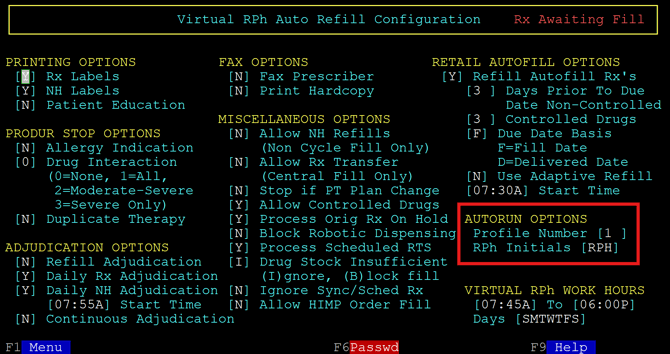
Also, for Virtual to be doing any of its jobs, it must be started. Outcomes recommends signing into Rx30 on the server computer and navigating to Fills > 13 Virtual RPH > F4 Start. This window will then become the Virtual RPH window. You can not use this Rx30 session for anything else unless you stop Virtual. You can minimize the window and open a new one if needed, but the VRPH window must be launched and started for VRPH to operate.